This tutorial explains how to configure the hotspot portal, create, print, and manage guest access vouchers, as well as monitor guest connections in the UniFi Network Management Controller as a hotspot manager. Follow these steps to effectively manage guest Wi-Fi access.
Prerequisites
Before starting, ensure you have:
- A UniFi controller (version 7.x or later recommended) with a guest Wi-Fi network already configured.
- Access as a hotspot manager or administrator with permissions to manage the hotspot.
- A printer (optional, for printing access vouchers).
- A device to access the UniFi controller interface (browser or mobile app).

Step 1 : Access the UniFi Controller
- Open a web browser and navigate to the IP address or hostname of your UniFi controller (e.g., https://192.168.1.1 or https://unifi.yourdomain.com) or via unifi.ui.com.
- Log in with your administrator or hotspot manager credentials.
- Note: Hotspot manager accounts have limited permissions but can manage guest access and vouchers.
- Ensure you are on the correct UniFi site if your controller manages multiple networks.
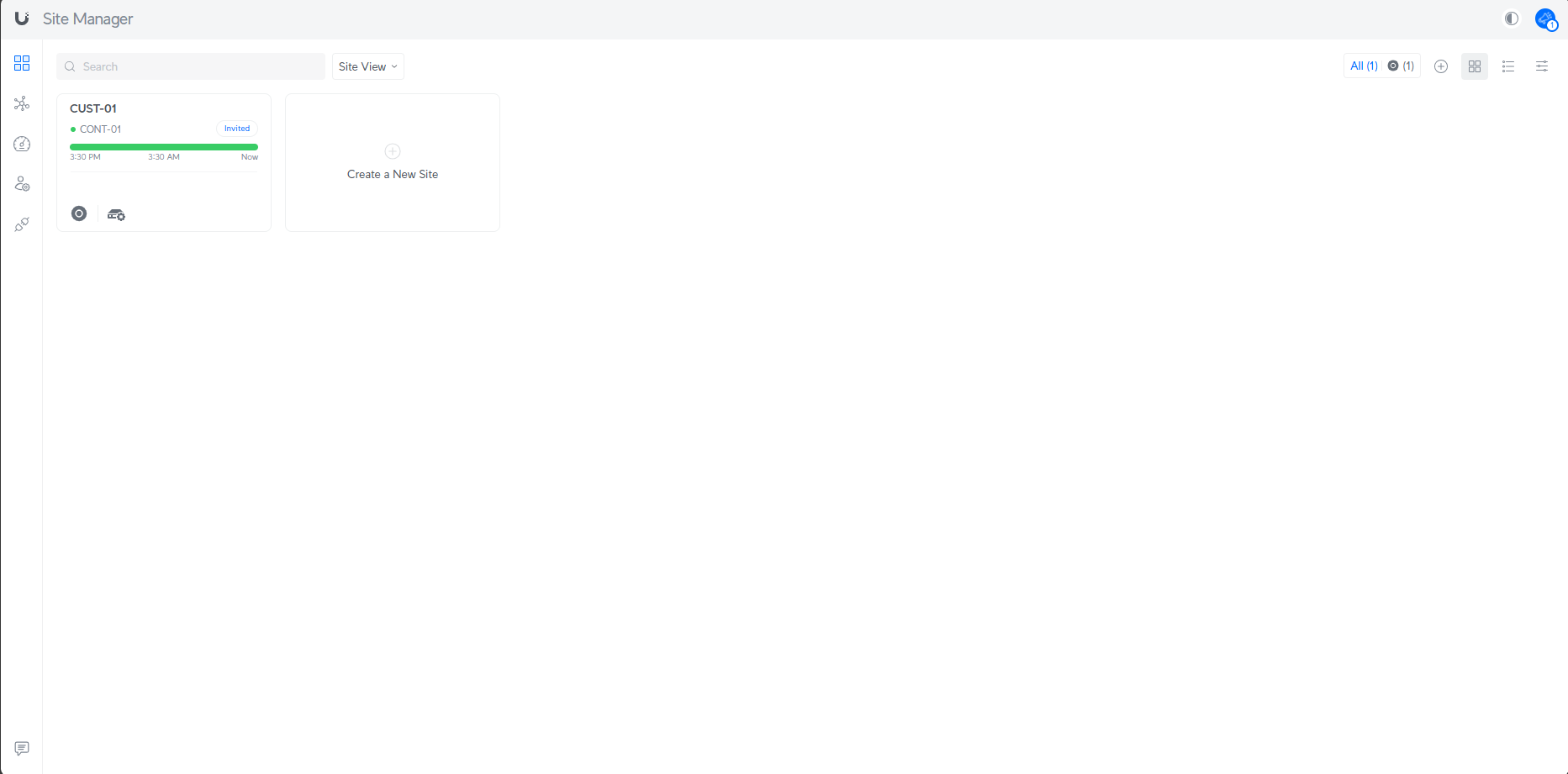
Step 2 : Create Access Vouchers
Vouchers are single-use or multi-use codes that guests enter to access Wi-Fi.
- Access the Hotspot Manager: Go to the Hotspot Manager (accessible via the left sidebar or dedicated tab).
- Create Vouchers:
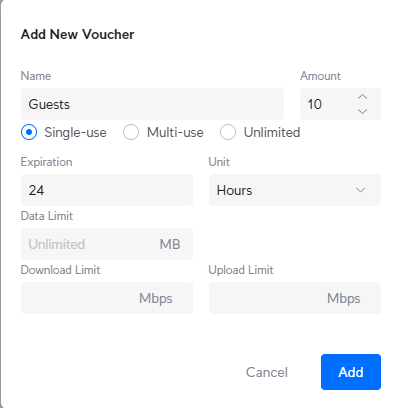
- Click Create Vouchers.
- Quantity: Specify the number of vouchers to generate (e.g., 10).
- Type: Choose Single Use (one device per voucher) or Multi-Use (multiple devices sharing one voucher).
- Duration: Set the validity period (e.g., 8 hours, 1 day, 1 week).
- Quota: If allowed by the existing configuration, set a data limit (e.g., 500 MB).
- Click Create.
- View Vouchers: Created vouchers appear in the Hotspot Manager list, showing details like code, duration, and status (active, used, or unused).
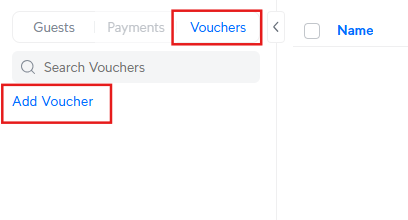
Step 3 : Print Vouchers
To distribute vouchers physically, you can print them for guests.
- Select Vouchers to Print:
- In the Hotspot Manager, locate the created vouchers in the Vouchers tab.
- Check the boxes next to the vouchers you wish to print.
- Print Vouchers:
- Click the Print button.
- Select a print format (e.g., one voucher per page or multiple vouchers per page).
- If available, adjust the layout to include the SSID or instructions.
- Send to Printer:
- Ensure your printer is connected and configured.
- Click Print to generate a PDF or send directly to the printer.
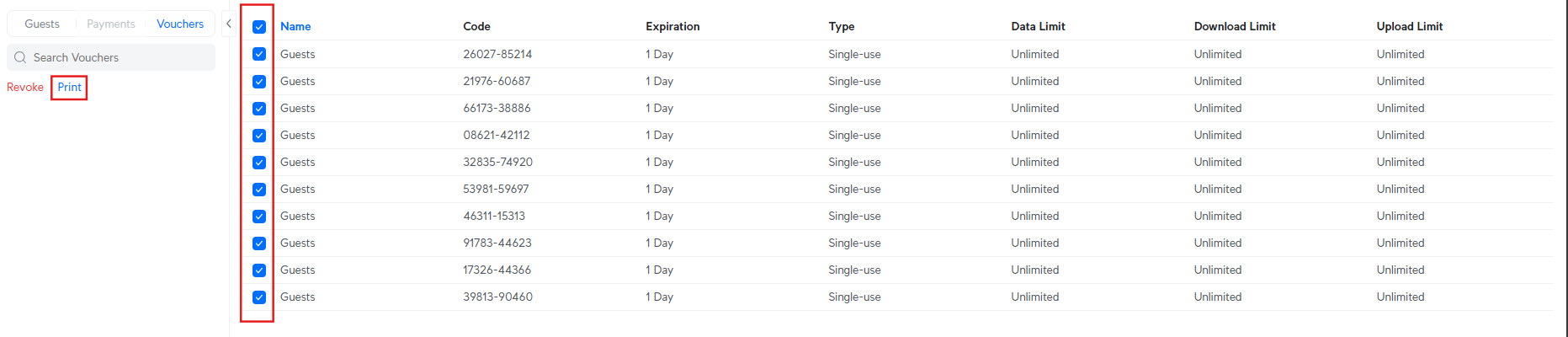
Step 4 : Manage Vouchers and Guests
Monitor and manage vouchers and connected guests to ensure smooth operation.
- View Connected Guests:
- In the Hotspot Manager, go to the Guests tab to view active connections.
- Details include the device’s MAC address, voucher used, data usage, and connection duration.
- Revoke Guest Access:
- To disconnect a guest, select their device in the Guests tab and click Revoke.
- This helps manage misuse or free up resources.
- Manage Vouchers:
- In the Vouchers tab, view all created vouchers and their status.
- Revoke unused or active vouchers if needed by selecting a voucher and clicking Revoke.
- Export the voucher list as a CSV file for tracking, if the option is available.
- Monitor Usage:
- Check data consumption and session duration to detect any abnormal usage.
Step 5 : Troubleshoot Common Voucher Issues
- Guests Cannot Connect with a Voucher:
- Verify the voucher is valid and not expired in the Vouchers tab.
- Ensure the guest enters the code correctly (case-sensitive).
- Printing Issues:
- Confirm the printer is online and compatible.
- Try downloading the voucher PDF and printing manually.
- Voucher Used by the Wrong Device:
- Revoke the voucher in the Vouchers tab and generate a new one if necessary.
Support
If you have additional questions or need assistance, you can contact ED-Consult via the following channels:
- Email: desk@ed-consult.be
- Web: support.ed-consult.be
Was this article helpful?
That’s Great!
Thank you for your feedback
Sorry! We couldn't be helpful
Thank you for your feedback
Feedback sent
We appreciate your effort and will try to fix the article